> ## Documentation Index
> Fetch the complete documentation index at: https://rive-advanced-topics.mintlify.site/llms.txt
> Use this file to discover all available pages before exploring further.
# View Models & Instances
export const YouTube = ({id, timestamp}) => {
const videoSrc = timestamp ? `https://www.youtube.com/embed/${id}?start=${timestamp}` : `https://www.youtube.com/embed/${id}`;
return ;
};
export const UseCase = ({title, children}) => {
return ;
};
A View Model defines the structure of your data. It acts as a reusable blueprint that contains a collection of properties, such as a car's color, speed, and damage.
Each property has a type, such as Number, String, Boolean, Color, Enum, or List (For more information, see [View Model Properties](/editor/data-binding/view-model-properties)).
View Models do not store values themselves. Instead, values are stored in one or more View Model Instances that are created from the View Model.
For example, if you were building a racing game, you might create a Car View Model with the following [properties](/editor/data-binding/view-model-properties):
```jsx theme={null}
Car (View Model)
color: Color
damage: number
make: string
speed: number
```
A single View Model can be used to create many View Model Instances. Each instance shares the same structure but stores its own values.
```jsx theme={null}
Car1 (View Model Instance)
color: 0xFFFF0000
damage: 0
make: "Subaru"
speed: 0
Car2 (View Model Instance)
color: 0xFFFF00FF
damage: .9
make: "Honda"
speed: 0
```
The properties in your instances can then be bound to elements in your designs, allowing text, images, colors, animations, state machines, and other properties to react to data changes automatically.
### Creating a View Model
A View Model defines the structure of your data. Before creating View Model Instances or setting up data bindings, you'll first need to create a View Model and add properties to it.
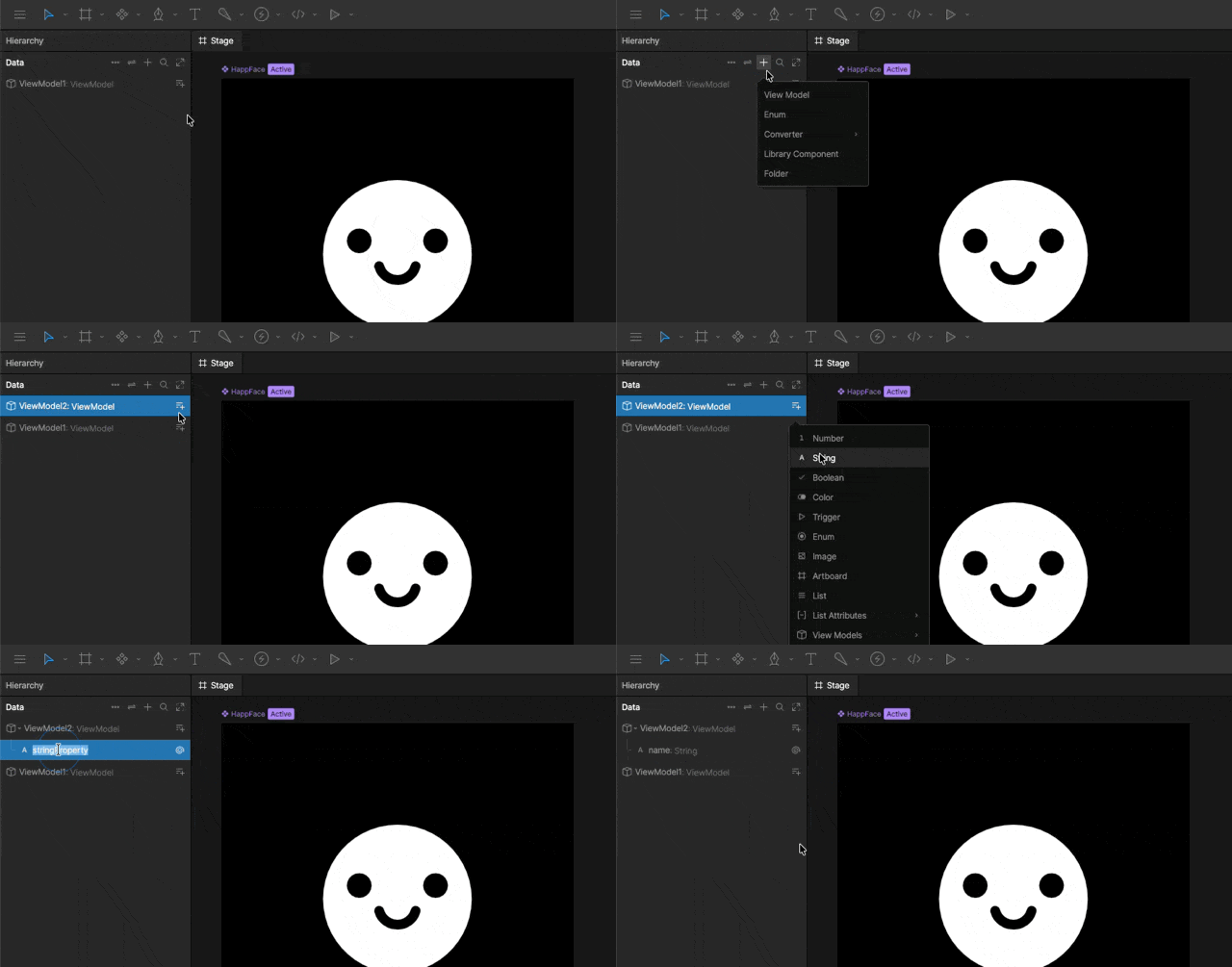
New Rive files come with a default view model called "ViewModel1" that is already attached to the main artboard.
In the Data panel, click the `+` icon and select **View Model** or [**Global View Model**](#global-view-model-instances).
In the Data panel, click the **Add View Model Property** button next to the view model name and select your [property type](/editor/data-binding/property-types).
 ## Creating and Editing Instances
Once your View Model has been created, you can create one or more View Model Instances that store actual values for those properties.
### Creating a View Model Instance
A View Model can have multiple instances. Each instance contains its own set of property values while sharing the same structure defined by the View Model.
When creating a new View Model, Rive automatically creates a View Model Instance named "Instance" so you can immediately begin testing bindings and previewing data.
## Creating and Editing Instances
Once your View Model has been created, you can create one or more View Model Instances that store actual values for those properties.
### Creating a View Model Instance
A View Model can have multiple instances. Each instance contains its own set of property values while sharing the same structure defined by the View Model.
When creating a new View Model, Rive automatically creates a View Model Instance named "Instance" so you can immediately begin testing bindings and previewing data.
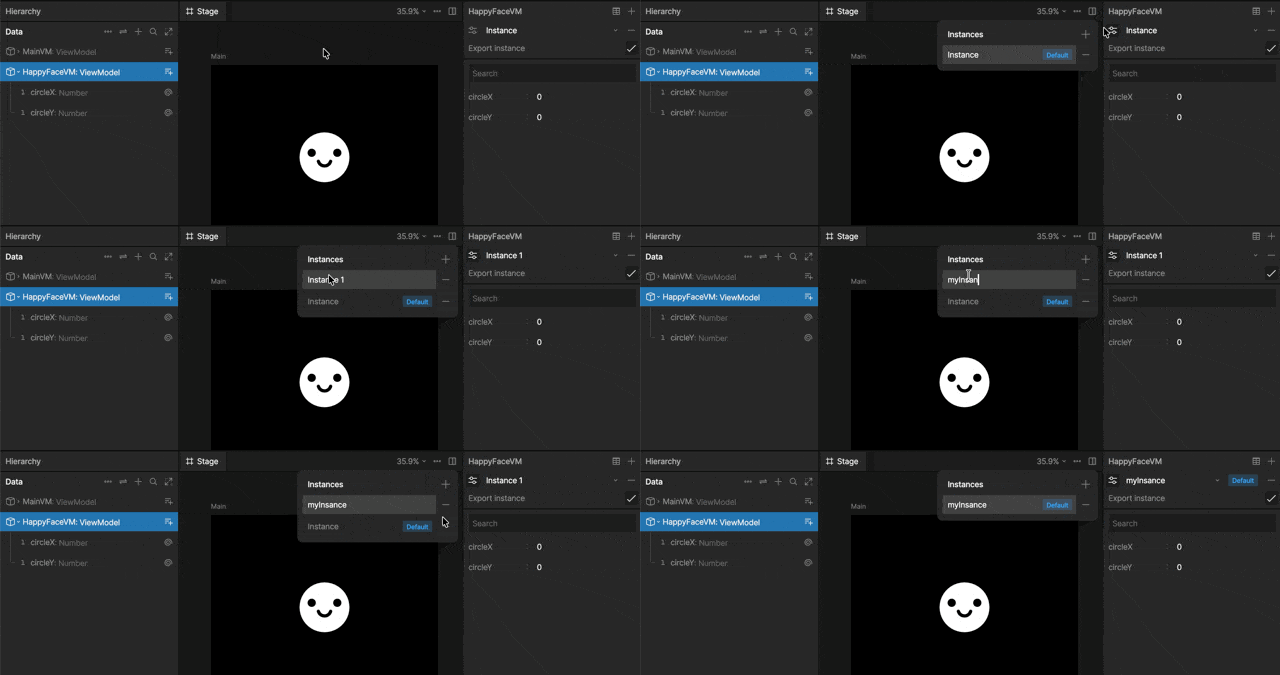 Select a View Model in the Data panel, then click the Controls icon next to the instance name in the Inspector.
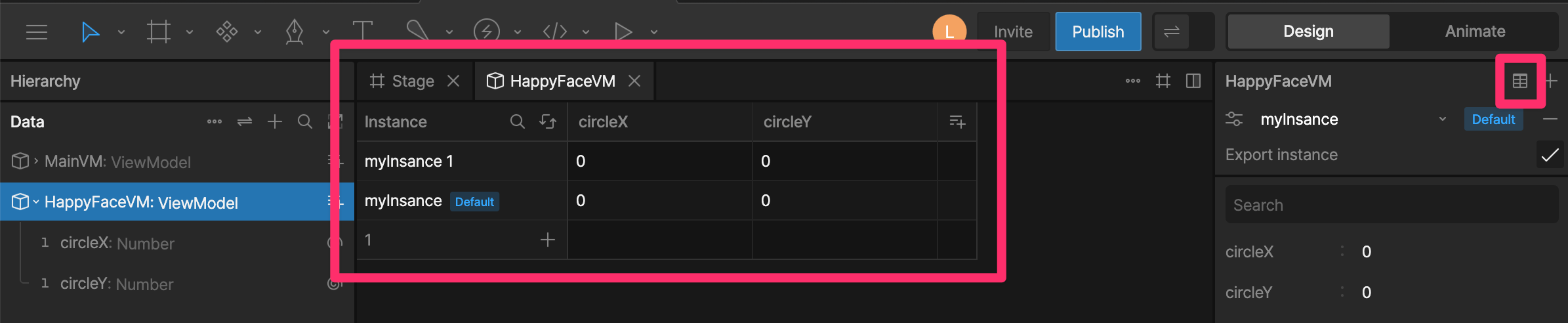
To see all of your view model instances and values at once, click the Open Table Data button.
Select a View Model in the Data panel, then click the Controls icon next to the instance name in the Inspector.
To see all of your view model instances and values at once, click the Open Table Data button.
 Click the `+` icon to add a new instance.
Double click the instance's name to rename it.
With the instance selected, change any of its properties.
Note that this changes **only** the values on the selected view model instance.
### Removing Instances
Click the `-` icon next to the instance name to delete it.
Click the `+` icon to add a new instance.
Double click the instance's name to rename it.
With the instance selected, change any of its properties.
Note that this changes **only** the values on the selected view model instance.
### Removing Instances
Click the `-` icon next to the instance name to delete it.
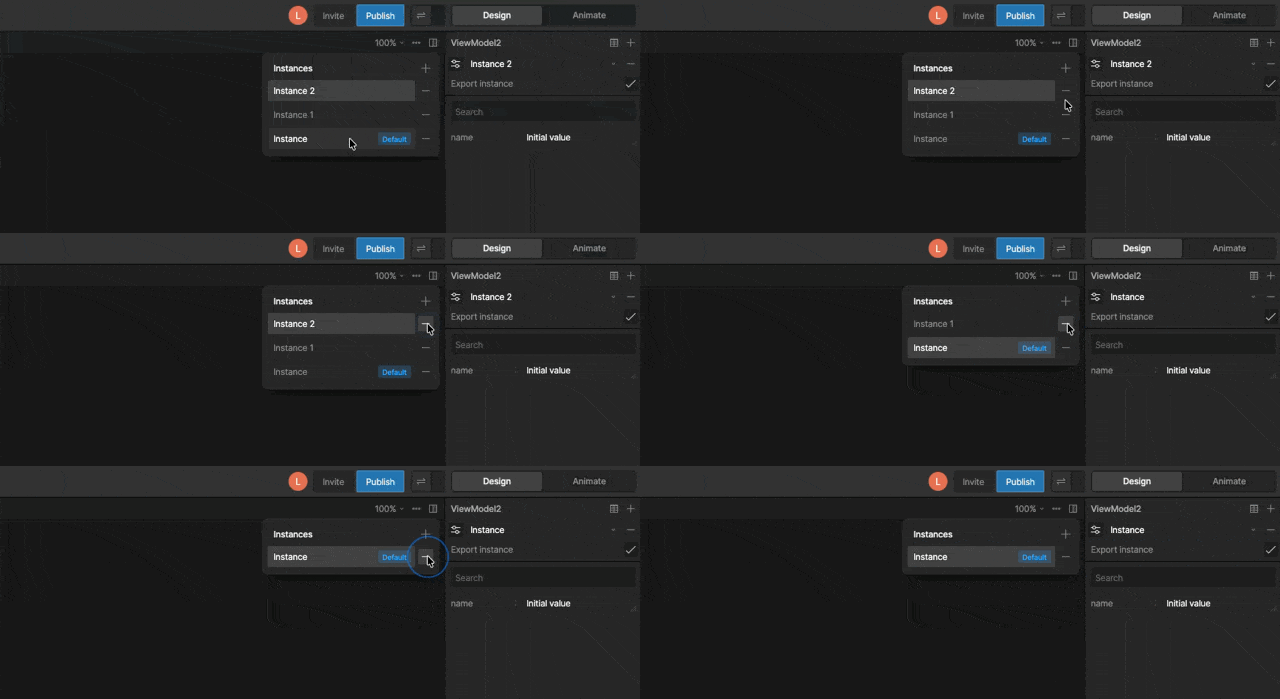 Deleting a View Model Instance does not remove the View Model or its properties. It only removes that instance and its stored values.
### Exporting Instances
By default, exported View Model Instances are included in the .riv file. Disable Export Instance when the data is only needed during development, not in your application at runtime.
Deleting a View Model Instance does not remove the View Model or its properties. It only removes that instance and its stored values.
### Exporting Instances
By default, exported View Model Instances are included in the .riv file. Disable Export Instance when the data is only needed during development, not in your application at runtime.
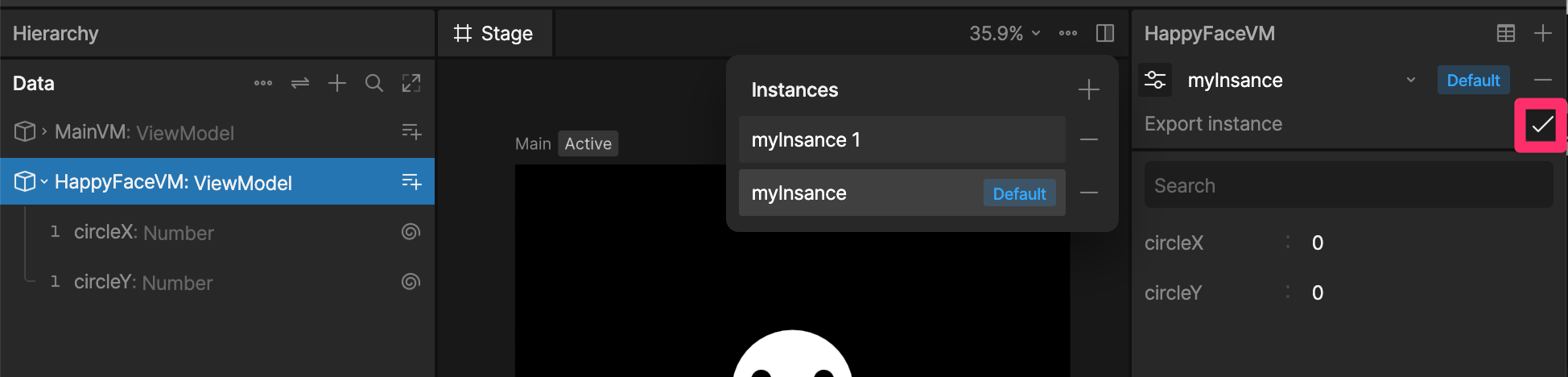 Let's say you're building a high score screen in Rive. While designing, you'll use fake score data, but when your game is live, the high scores will be populated using real data from a database or another source.
In this case embedding the example data just increases your .riv file size.
## Connecting View Model Instances to Artboards
Before binding data, you'll need to decide where the data should live.
Rive supports a few common patterns:
| Pattern | |
| :------------------------------------------------------------------ | :--------------------------------------------------------------------------------------------------------------- |
| [Global Instances](#global-view-model-instances) | Global view models and their properties are directly accessible to all artboards |
| [Instances attached to artboards](#instances-attached-to-artboards) | The view model instance is attached to the artboard and its values can be used by that artboard and its children |
| [Instances as nested properties](#instances-as-nested-properties) | The parent view model instance stores a reference to a nested view model instance |
| [Stateful nested components](#stateful-components) | Self-contained, reusable components that store their own unique data |
### Global View Model Instances
Global view models are not connected to a specific artboard. Instead, the view model instance and its properties are directly accessible to all artboards.
A game's main view model might contain a `brandColor` or `score` property. This property might be used by various nested components, like the header, on buttons, or on a high scores screen.
### Instances Attached to Artboards
View Model instances can be attached to a specific artboard or nested component. This is useful when only that artboard and its children need access to that data.
```
EnemyVM
├─ health
```
An Enemy view model might contain a `health` property. This property might be used by the enemy itself, but not by its parent.
### Instances as Nested Properties
View Models can have properties that are View Model instances.
In this pattern, the parent View Model stores references to child instances, either directly or through a [list](/editor/data-binding/lists).
```
GameVM
├─ health
└─ score
└─ avatar
└─ inventory (stores an instance of InventoryVM)
InventoryVM
├─ Sword
├─ Shield
└─ Potion
```
Let's say you're building a high score screen in Rive. While designing, you'll use fake score data, but when your game is live, the high scores will be populated using real data from a database or another source.
In this case embedding the example data just increases your .riv file size.
## Connecting View Model Instances to Artboards
Before binding data, you'll need to decide where the data should live.
Rive supports a few common patterns:
| Pattern | |
| :------------------------------------------------------------------ | :--------------------------------------------------------------------------------------------------------------- |
| [Global Instances](#global-view-model-instances) | Global view models and their properties are directly accessible to all artboards |
| [Instances attached to artboards](#instances-attached-to-artboards) | The view model instance is attached to the artboard and its values can be used by that artboard and its children |
| [Instances as nested properties](#instances-as-nested-properties) | The parent view model instance stores a reference to a nested view model instance |
| [Stateful nested components](#stateful-components) | Self-contained, reusable components that store their own unique data |
### Global View Model Instances
Global view models are not connected to a specific artboard. Instead, the view model instance and its properties are directly accessible to all artboards.
A game's main view model might contain a `brandColor` or `score` property. This property might be used by various nested components, like the header, on buttons, or on a high scores screen.
### Instances Attached to Artboards
View Model instances can be attached to a specific artboard or nested component. This is useful when only that artboard and its children need access to that data.
```
EnemyVM
├─ health
```
An Enemy view model might contain a `health` property. This property might be used by the enemy itself, but not by its parent.
### Instances as Nested Properties
View Models can have properties that are View Model instances.
In this pattern, the parent View Model stores references to child instances, either directly or through a [list](/editor/data-binding/lists).
```
GameVM
├─ health
└─ score
└─ avatar
└─ inventory (stores an instance of InventoryVM)
InventoryVM
├─ Sword
├─ Shield
└─ Potion
```
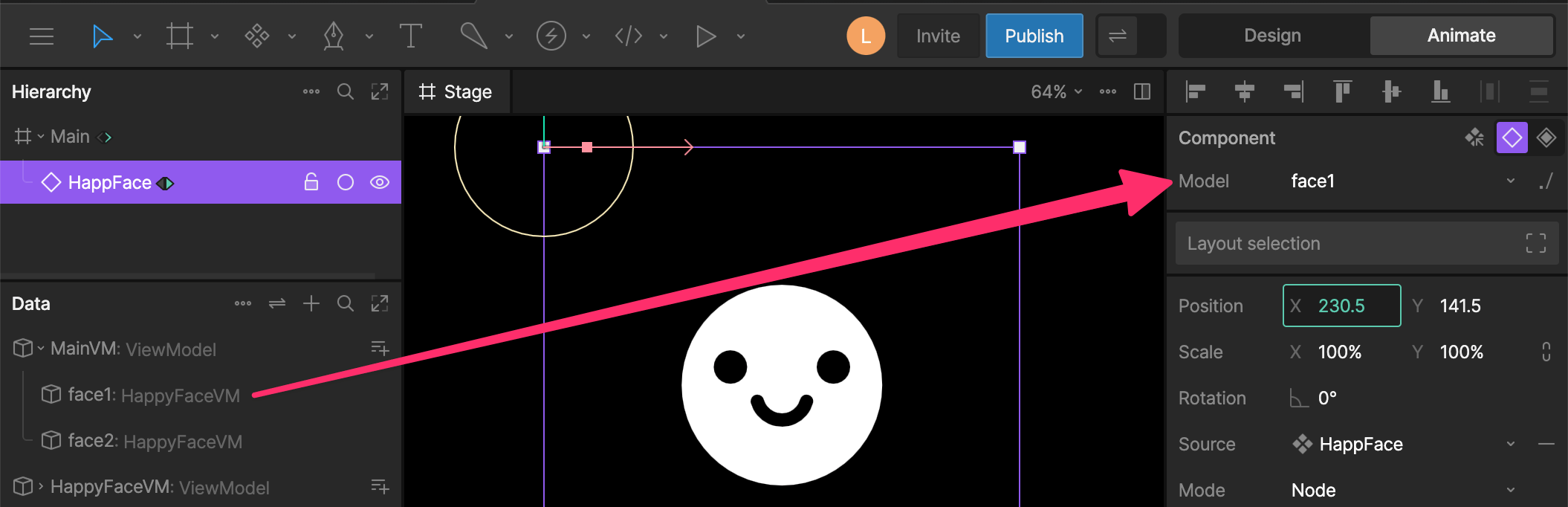 This approach is useful when a parent artboard needs to manage a collection of items while still allowing each component to maintain its own data.
An inventory screen might contain a list of Item View Model Instances, with each inventory slot component bound to a different item.
### Stateful Components
A stateful component is an instance of a component that maintains its own data.
Unlike traditional component View Model Instances, these instances do not need to be created or referenced by the parent View Model. Instead their properties are exposed in the sidebar.
This approach is useful when a parent artboard needs to manage a collection of items while still allowing each component to maintain its own data.
An inventory screen might contain a list of Item View Model Instances, with each inventory slot component bound to a different item.
### Stateful Components
A stateful component is an instance of a component that maintains its own data.
Unlike traditional component View Model Instances, these instances do not need to be created or referenced by the parent View Model. Instead their properties are exposed in the sidebar.
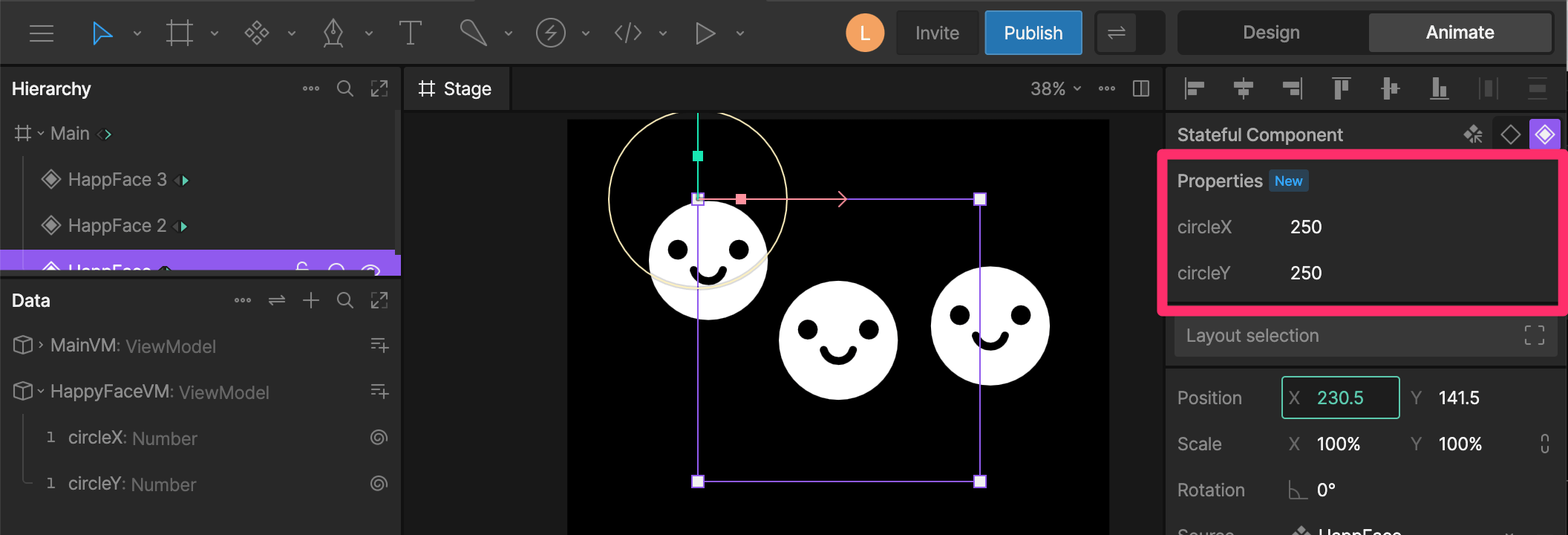 For more information, see [Stateful Components](/editor/data-binding/stateful-components).